The Shell
Visitors to our website are getting errors. The server’s access log records the requests it received, including the path each visitor requested and the HTTP status it returned. We will search that log, find a broken link, and save a script that reports how many requests failed.
Download create_practice.py into a new scratch folder and run it there:
$ python3 create_practice.py
Created shell-practice
$ cd shell-practice
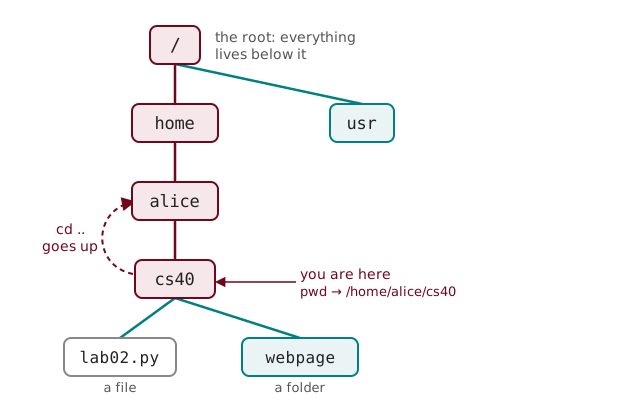
The generator creates a new shell-practice directory containing a small website and sample logs. It refuses to overwrite an existing folder. For the path examples and diagram below, suppose our files are in /Users/rwitter/csci40/. Use pwd to check your working directory.
You have already used the shell to run Python programs. The shell reads commands and starts the programs they name. Here we will use it to work with files and connect one program’s output to another’s input.
The shell grew out of Unix, the operating system developed at Bell Labs beginning in 1969. The Unix philosophy favors small programs that each do a focused job, work together, and exchange text. Our investigation follows that approach: cat reads the log, grep selects requests, and wc counts them. The shell connects those programs.
The condescending Unix user is an old comic stereotype:

In VS Code, open Terminal → New Terminal. On Windows, choose Terminal → Select Default Profile → Git Bash and open a new terminal so these commands work as shown. The default macOS and Linux terminals also support the commands here. We will explicitly use Bash to run our saved script. In terminal examples, $ marks a command to type. Leave out the $ itself. Lines without it show output. If you see Python’s >>> prompt, run exit() first.
Paths and Navigation
From Strings and Files: pwd means “print working directory,” ls means “list,” and cd means “change directory.” An absolute path, such as /Users/rwitter/csci40/access-2026-10-12.log, starts at the root. A relative path, such as webpage/index.html, starts at the working directory. Use . for the current directory and .. for its parent. Inspect the webpage folder, then return:
$ cd webpage
$ ls
index.html  style.css
$ cd ..
For reference, cd with no argument returns home, and ~ represents your home directory in a path. The diagram shows a file and folder within our working directory:
Listing Files
Back in the practice folder, list its contents:
$ ls
access-2026-10-02.log  access-2026-10-10.log  access-2026-10-11.log  access-2026-10-12.log  webpage
access-2026-10-12.log holds the requests from Monday, October 12, 2026. Each filename includes its date in YYYY-MM-DD order, so sorting by name also puts the logs in date order. The other logs are from October 2, 10, and 11. Like our scraper’s --url, many commands accept options that change their behavior. The -a option means “all,” so it includes hidden files, whose names begin with a dot:
$ ls -a
.  ..  .gitignore  access-2026-10-02.log  access-2026-10-10.log  access-2026-10-11.log  access-2026-10-12.log  webpage
.gitignore lists files or folders Git should leave untracked. The other extra names, . and .., refer to the current and parent directories. For sizes and modification dates, use ls -l: the l selects the long listing format.
Use ls -1 (the digit one) for one filename per line. Combine it with -a as ls -1a to include hidden entries. A directory argument selects what to list: ls -a webpage lists that folder, while ls -a .. lists the parent.
Reading and Managing Files
Read the current log with cat:
$ cat access-2026-10-12.log
2026-10-12 09:00 200 GET /
2026-10-12 09:01 200 GET /about
2026-10-12 09:02 404 GET /cats
2026-10-12 09:03 404 GET /favicon.ico
2026-10-12 09:04 200 GET /images/cat.png
2026-10-12 09:05 500 GET /search
2026-10-12 09:06 200 GET /Cats
2026-10-12 09:07 404 GET /old-page
cat is short for concatenate, meaning join in sequence. Given several filenames, it prints their contents one after another. With one filename, it prints that file. Each line in our simplified log records a date, time, status, method, and requested path. From web scraping, 200 means success, 404 means not found, and 500 means a server error. GET is the method our scraper also used to request a page. Actual servers use different log formats. These examples use the format shown here.
Make a copy before experimenting, then give the copy a clearer name:
$ cp access-2026-10-12.log access-2026-10-12-copy.log
$ mv access-2026-10-12-copy.log access-2026-10-12-backup.log
cp means “copy”: it takes a source and a destination and leaves the source untouched. mv means “move”: renaming a file moves it to a new name in the same directory. When its destination is a directory, it moves the file into that directory.
Use cat access-2026-10-12-backup.log to inspect the copy, then remove it and create a folder for the older logs:
$ rm access-2026-10-12-backup.log
$ mkdir logs
rm means “remove” and has no trash can or undo operation, so check the filename before running it. mkdir means “make directory.”
To create an empty file for investigation notes, use touch:
$ touch notes.txtIf the file already exists, touch updates its timestamps without erasing its contents. It accepts several filenames, separated by spaces. Quotes group text into one argument, so a quoted name is passed as one filename. We use names without spaces in our own files.
For the lab’s separate project folder, use mkdir to create it and cd to enter it, then git init to initialize an empty Git repository. For a Python project’s environment, follow Course Setup.
Wildcards
Move the older logs into logs/, keeping today’s access-2026-10-12.log where it is. The * wildcard matches any run of characters. Preview the filenames before moving them:
$ ls *.log
access-2026-10-02.log  access-2026-10-10.log  access-2026-10-11.log  access-2026-10-12.log
$ ls access-2026-10-0*.log
access-2026-10-02.log
The second pattern requires the day to start with 0, so only October 2 matches among our files. The shell expands the pattern into filenames before running the command. The same expansion works with ls, cp, mv, and rm. Quoting a pattern, as in '*.log', passes it along as literal text instead.
The ? wildcard matches exactly one character:
$ ls access-2026-10-1?.log
access-2026-10-10.log  access-2026-10-11.log  access-2026-10-12.log
Here it matches a single character after the 1 in the day, so October 10, 11, and 12 match. That includes today’s log, which we want to keep here. Name the three older files explicitly when moving them:
$ mv access-2026-10-02.log access-2026-10-10.log access-2026-10-11.log logs/
$ ls logs
access-2026-10-02.log  access-2026-10-10.log  access-2026-10-11.log
Preview a wildcard with ls before using it with rm, too.
Redirection and Pipes
Count today’s requests:
$ cat access-2026-10-12.log | wc -l
8
A pipe, |, connects one command’s standard output to another’s standard input. wc means “word count,” but it can count lines and bytes too. The -l option selects lines, so cat access-2026-10-12.log | wc -l reads as “send the log text to the line counter.” More precisely, wc -l counts newline characters, and every request in our sample ends with one. Since each line represents one request, we received eight requests. Run the left side of a pipeline by itself when you want to inspect what the next command will receive.
We can also give wc a filename directly, or have the shell open that file as standard input with <:
$ wc -l access-2026-10-12.log
8 access-2026-10-12.log
$ wc -l < access-2026-10-12.log
8
With a filename argument, wc includes the name in its output. With <, it receives the file’s contents through standard input and prints only the count. The pipe version also reads standard input. Some systems put extra spaces before the count.
To count the older log files, pipe the list of filenames into wc -l:
$ ls logs | wc -l
3
Here ls produces one line per filename when writing to a pipe, so we count three files regardless of how many requests each records.
Save that count in a labeled report:
$ mkdir reports
$ echo "Requests:" > reports/summary.txt
$ cat access-2026-10-12.log | wc -l >> reports/summary.txt
$ cat reports/summary.txt
Requests:
8
echo prints the text you give it. > sends standard output to a file, replacing any existing contents. >> appends to the end. Using > on the count would erase our label. The shell handles the redirection, so the same operators work with different programs. Error messages normally use a separate stream, standard error, and can still appear in the terminal when standard output goes to a file. The lab uses echo and these operators to write its inventory and practice configuration files.
printf gives us control over line breaks using \n, the newline escape we used in Python:
$ printf 'Status codes:\n404: not found\n500: server error\n'
Status codes:
404: not found
500: server error
Unlike echo, printf does not add a final newline automatically. The final \n above supplies it.
Writing Several Lines
We want to save a few investigation notes together. A here document, often shortened to heredoc, supplies text to a command right here in the shell:
$ cat > notes.txt <<'EOF'
Check the /cats and /Cats paths.
Find the link to /old-page.
EOF
$ cat notes.txt
Check the /cats and /Cats paths.
Find the link to /old-page.
<<'EOF' feeds the following lines into cat as standard input. cat prints that input, and > notes.txt saves the output in the file. The line containing only EOF ends the input and is not written to the file. EOF means “end of file,” but it is a marker we choose: END would also work if we used it in both places. Quoting the opening marker makes the body literal text, including any $ characters. An unquoted opening marker, such as <<EOF, allows the shell to substitute variables in the body. We will use shell variables in the report loop below.
We can write Python code into a file the same way with cat > example.py <<'EOF', then run python3 example.py. Writing python3 <<'EOF' instead feeds the code straight to Python without saving a file. For a script we want to keep editing, we can still create and save it in VS Code.
Searching Logs with grep
Find the requests for missing pages:
$ grep ' 404 ' access-2026-10-12.log
2026-10-12 09:02 404 GET /cats
2026-10-12 09:03 404 GET /favicon.ico
2026-10-12 09:07 404 GET /old-page
grep prints each line that matches its pattern. Its name comes from the old ed editor command g/re/p: global, regular expression, print. That command searched all lines for a pattern and printed the matches. The spaces around 404 help us match the status field in this log format, rather than a path containing those digits.
Patterns can also specify a position: grep '^2026-10-12' access-2026-10-12.log selects lines that begin with that date. The ^ means start of line. Thus grep '^p' would select lines starting with p, while grep 'p' accepts a p anywhere on the line. Quotes keep the pattern, including its spaces, together as one argument.
The missing /cats request looks odd: another visitor reached /Cats successfully. The -i option means ignore case, so the search accepts either capitalization:
$ grep -i 'cats' access-2026-10-12.log
2026-10-12 09:02 404 GET /cats
2026-10-12 09:06 200 GET /Cats
This changes how grep matches text. It does not change how the website handles those two paths. The log suggests a capitalization mismatch to investigate.
The -r means recursive: search the folder and the folders inside it. The -n adds each matching line’s number. Check whether the missing-page errors appeared in earlier logs:
$ grep -rn ' 404 ' logs
logs/access-2026-10-11.log:2:2026-10-11 10:01 404 GET /old-page
logs/access-2026-10-10.log:2:2026-10-10 10:01 404 GET /cats
The order of results can vary. -rn combines two options. -r -n does the same thing. We now have filenames and line numbers to open in the editor.
Search the webpage files for the old path:
$ grep -rn 'old-page' webpage
webpage/index.html:2:<a href="/old-page">Cat photos</a>
Our homepage still links to /old-page. That gives us a link to repair after we confirm the intended destination. The same search works for a function name or an error message in a Python project. In the lab, . as the search directory includes the whole working folder.
Filtering and Counting Matches
The missing browser icon, favicon.ico, is a separate issue from the missing pages. Filter it out while investigating page links:
$ grep ' 404 ' access-2026-10-12.log | grep -v 'favicon'
2026-10-12 09:02 404 GET /cats
2026-10-12 09:07 404 GET /old-page
-v selects “invert match”: it keeps lines that do not match the pattern. Here that removes the lines containing favicon. The second grep reads the first command’s output, so it filters the results without reopening the file. To count all missing-page responses, including the icon request, pipe the original search into wc -l:
$ grep ' 404 ' access-2026-10-12.log | wc -l
3
This counts matching lines. Two matches within one line would still contribute one. In grep, lowercase -l lists each matching file once instead of printing its matching lines:
$ grep -rl ' 404 ' logs
logs/access-2026-10-11.log
logs/access-2026-10-10.log
Option letters belong to the command: ls -l requests a long listing, wc -l counts lines, and grep -l lists matching filenames.
Keep reports outside the folders you search, or a later recursive search can find copies of earlier results. Here we search logs/ and save reports in reports/. grep also supports patterns beyond literal text. We will explore them in the regular expressions reading.
Saving Commands in a Bash Script
We can repeat this investigation’s counts without typing each command again. In VS Code, create report.sh inside shell-practice and save these commands:
# Summarize the current access log.
mkdir -p reports
echo "Requests:" > reports/summary.txt
cat access-2026-10-12.log | wc -l >> reports/summary.txt
echo "Not found (404):" >> reports/summary.txt
grep ' 404 ' access-2026-10-12.log | wc -l >> reports/summary.txt
echo "Server errors (500):" >> reports/summary.txt
grep ' 500 ' access-2026-10-12.log | wc -l >> reports/summary.txt
Bash stands for Bourne-Again SHell, a pun on an earlier Unix shell written by Stephen Bourne. A Bash script is a text file of commands for Bash to run. .sh is the usual filename extension. Bash runs the commands in order, using the same quoting, wildcards, pipes, and redirection as the terminal. The # line is a comment. Leave the terminal’s $ prompts and output out of the file. The -p in mkdir -p means “parents”: it creates any missing parent directories and accepts directories that already exist. That lets us run the report repeatedly without an error when reports is already there. The first echo uses > to start a fresh report each time.
Give the filename to Bash to run it:
$ bash report.sh
$ cat reports/summary.txt
Requests:
8
Not found (404):
3
Server errors (500):
1
Using bash report.sh explicitly selects Bash and requires no change to the file’s permissions. The script writes its results to reports/summary.txt, so a successful run prints nothing until we use cat.
Looping Over Status Codes
The 404 and 500 counts use the same steps: write a heading, find lines with that status, and count them. We can put those steps in a for loop and give it the two status codes. Replace the contents of report.sh with this version:
# Summarize the current access log.
mkdir -p reports
echo "Requests:" > reports/summary.txt
cat access-2026-10-12.log | wc -l >> reports/summary.txt
for status in 404 500
do
    echo "Status $status:" >> reports/summary.txt
    grep " $status " access-2026-10-12.log | wc -l >> reports/summary.txt
done
Like a Python for loop, this runs the body once for each value. The shell variable status holds 404 on the first pass and 500 on the second. In Bash, $status inserts that variable’s value into the command. Double quotes allow this substitution and keep the spaces together, so " $status " becomes " 404 " or " 500 ". Single quotes would search for the literal text $status. The keywords do and done mark the start and end of the body. Indentation makes the body easier to read, but Bash uses those keywords to find its boundaries.
Run the revised script:
$ bash report.sh
$ cat reports/summary.txt
Requests:
8
Status 404:
3
Status 500:
1
The counts are unchanged, and the loop generates each heading from its status code. To count another status, such as 403 (forbidden), we could add it to the list after in. Keep this loop version for the next experiment.
Running the Script on Another Log
Start in shell-practice and generate another set of sample files in a separate test folder:
$ cd ..
$ mkdir report-test
$ cd report-test
$ python3 ../create_practice.py
Created shell-practice
$ cd shell-practice
Add one more failed request to this copy of the log, then run our saved script against it:
$ echo "2026-10-12 09:08 404 GET /contact" >> access-2026-10-12.log
$ bash ../../shell-practice/report.sh
$ cat reports/summary.txt
Requests:
9
Status 404:
4
Status 500:
1
The script’s path tells Bash where to read the commands. Its relative paths, including access-2026-10-12.log and reports/summary.txt, use our current working directory. Running a script does not automatically change to the folder where it is saved. Check that the original report still shows eight requests and this one shows nine. The lab uses the same separation between a saved script and a fresh test folder, with file cleanup as your task.
Command-Line Arguments
Our report currently names one log inside the script. The web-scraping reading used argparse to let us pass a filename when running a program. Before argparse processes those options, Python receives the shell’s arguments in sys.argv. The name argv means “argument vector,” a sequence of arguments.
Return to the original shell-practice folder from the test folder:
$ cd ../../shell-practiceIn VS Code, create show_args.py with these lines:
import sys
print(sys.argv)
Compare a filename and a two-word description with and without quotes:
$ python3 show_args.py access-2026-10-12.log 'not found'
['show_args.py', 'access-2026-10-12.log', 'not found']
$ python3 show_args.py access-2026-10-12.log not found
['show_args.py', 'access-2026-10-12.log', 'not', 'found']
sys.argv[0] is the script name, so len(sys.argv) includes that name in its count. The remaining entries are strings, even when an argument looks like a number. The shell removes the grouping quotes before Python sees the arguments. Single and double quotes both group words, while double quotes also allow $variable substitution. A single quote inside double quotes is an ordinary character, and the reverse is true too. For named options such as --filename, we will keep using argparse.
Environment Variables
Another way to choose a log is to set an environment variable that programs inherit from the shell. Save log_setting.py in VS Code:
import os
print(os.getenv('LOG_FILE', 'access-2026-10-12.log'))
getenv means “get environment variable.” Its second argument supplies a default when that variable is absent. In a terminal where we have not set LOG_FILE, compare these runs:
$ python3 log_setting.py
access-2026-10-12.log
$ export LOG_FILE=logs/access-2026-10-11.log
$ python3 log_setting.py
logs/access-2026-10-11.log
$ unset LOG_FILE
export makes the setting available to programs started from this shell. There are no spaces around the assignment’s =. Names are case-sensitive: LOG_FILE and log_file are different variables. unset removes the setting, so later runs use the default again. The LLM reading will use environment variables for API credentials.
Saving Changes with Git
Our search found a link to /old-page in webpage/index.html. We can save the original website, try a repair on a branch, and compare both versions. A branch records a line of commits, each a saved version of the files we selected. From the original shell-practice folder, run:
git init -b main
git add webpage
git commit -m "Save the original website"
git branch fix-link
git checkout fix-link
These commands print Git’s confirmation messages. init initializes a repository, creating the hidden .git directory that stores its history. The -b main option names the initial branch explicitly. git add webpage stages that directory’s files for the next commit, and git commit saves the staged contents. The -m option supplies the commit message. git branch fix-link creates a branch, and git checkout fix-link switches to it. The newer command git switch fix-link also switches branches.
In VS Code, change the link in webpage/index.html from /old-page to /Cats, the path that succeeded in our log. Save the file, then commit the repair:
git add webpage/index.html
git commit -m "Fix the cat photos link"
git checkout main
cat webpage/index.html
git checkout fix-link
cat webpage/index.html
On main, the file still links to /old-page. On fix-link, it links to /Cats. Switching branches updates tracked files to their committed versions on that branch. A file committed only on one branch disappears from the working folder when we switch to the other. Untracked files, such as our logs, stay in place unless they would conflict with a tracked file. Commit edits before switching so an unfinished change does not follow us to the other branch or block the switch. The repair is now saved locally on fix-link.