Lab: Download and Decode
Due: Wednesday, September 30 at 11:59pm · Worth: 6 points
Restore a training dossier’s text and video attachments so someone else can read and play them. The decoded message earns 4 points and the video earns 2, independently. The historical documents and dossier.md notes are ungraded practice.
Start
Create lab-files from the starter template, clone your copy, and open it in VS Code. See the first lab for that workflow. A starter ZIP is also available: open its inner lab-files folder and use Initialize Repository and Publish to GitHub.
Open dossier.md to find the attachments: communiqué copies for encoding practice, a fictional intercepted message, and a Rickroll for the playback test. Start with the text already on disk. Keep the original files in files/ and part2/ unchanged.
Read the Known Documents
Create decode_dossier.py in lab-files and run it from that folder with python3 decode_dossier.py (python on Windows if needed). Use the reading’s file-reading example to read and print a preview of each document:
| File | Encoding |
|---|---|
files/shanghai_communique.english |
ascii |
files/shanghai_communique.chinese1 |
gb2312 |
files/shanghai_communique.chinese2 |
big5 |
The English preview begins JOINT COMMUNIQUE ... February 28, 1972 ... Shanghai. Try reading a Chinese copy with the wrong encoding. Record what happens in dossier.md, then restore the correct encoding.
The Document’s History
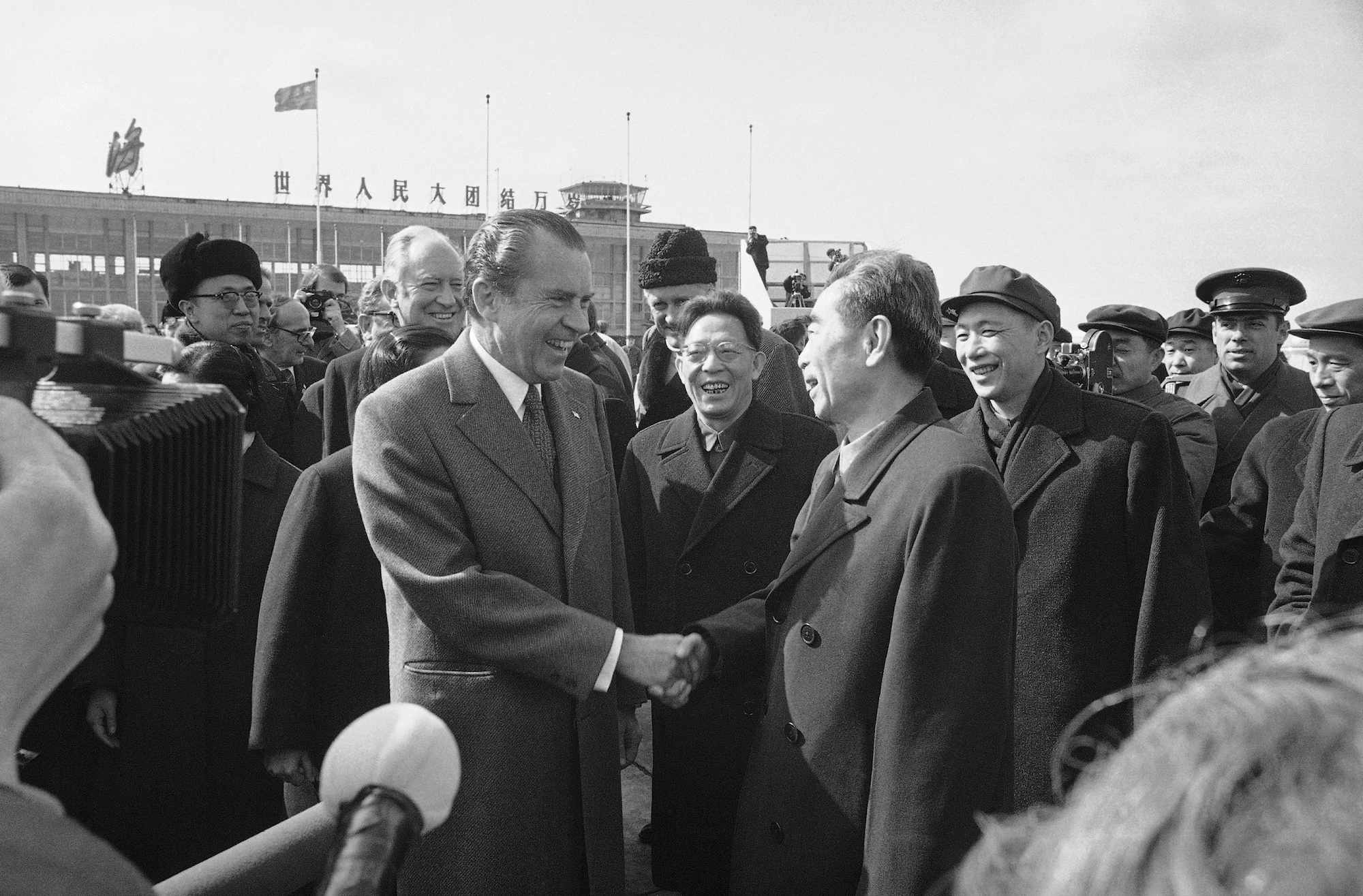
The Shanghai Communiqué was a joint US–China statement issued during Nixon’s 1972 visit, famous for stating the US “One China” policy. The photograph shows Nixon meeting Zhou Enlai:
The Same Bytes, Different Text
ASCII represents A with one byte, 0x41 (65). GB2312 uses two bytes per Chinese character, enough combinations for the roughly 3000 Hanzi in everyday use. It was designed for mainland China’s simplified characters. Taiwan’s Big5 supports traditional characters, with different byte assignments.
A wrong encoding can raise UnicodeDecodeError, but it can also produce valid, incorrect text. Add this experiment to your script:
print(b'\x41'.decode('ascii'))
print(b'\xd3\xd1'.decode('gb2312'))
print(b'\xd3\xd1'.decode('big5'))
The added lines print:
A
友
衭
The last two characters mean “friend” and “the front of a shirt.” Thus b'I love \xd3\xd1' can read as “I love friends” or “I love shirts” without an error. Successful decoding alone cannot identify an encoding, and an editor’s automatic guess can be wrong.
A Shared Character Standard
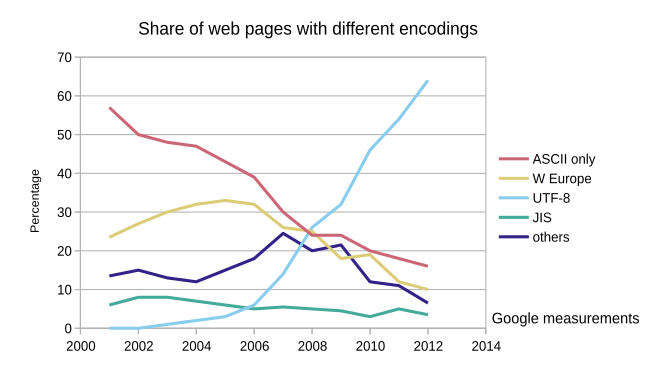
Competing encodings made exchanging Chinese text difficult. The Unicode Consortium, founded in 1991, assigns characters numbers shared across languages. UTF-8, UTF-16, and UTF-32 can all represent Chinese; the chart shows UTF-8’s adoption on the web:
Seven emoji were added at North Korea’s request. The DPRK proposed calling ☕ HOT TEA, then agreed to HOT BEVERAGE so it could include coffee. The starter’s dprk-unicode.md describes this cooperation.
After the exceptions lesson, try an optional chinese.py with a function named load_chinese_file(filename). Have it read bytes, try GB2312, and fall back to Big5 on UnicodeDecodeError, printing the chosen encoding and returning the text. The two Chinese files should choose gb2312 and big5, respectively. The ambiguous example above explains why this fallback cannot prove the encoding for arbitrary files.
Decode the Intercepted Message
In the dossier’s fictional case, a US government employee is leaking submarine plans to Brazil. A field agent has intercepted the next meeting’s instructions, and your State Department analyst must decode them so the FBI can reach the meeting. The scenario draws on a real submarine espionage case:
Read part2/secret_message.txt in binary mode ('rb') and print its bytes in decode_dossier.py. Use the codecs table to find candidate encodings: search for “Western Europe,” since the message is Portuguese. Try decoding the bytes and compare the results for sensible accents and punctuation. You may use Google Translate to understand the message, but submit the original Portuguese.
Save a Readable Copy
Use open(..., 'w', encoding='utf-8') and write, as in the reading’s text exporter, or create a UTF-8 file in VS Code and paste the decoded text. Renaming a file does not change its encoding; the printed b'...' representation is not the decoded message. Reopen the saved copy and note its original encoding in dossier.md. Only the restored message is graded here; the scripts and notes are practice.
Restore the Video Attachment
Use yt-dlp to download the dossier’s Rickroll, then FFmpeg to join its picture and sound.
Keep the downloader’s source outside your submitted repository:
csci40/
├── lab-files/     your assignment
└── yt-dlp/        the downloader
From lab-files, run cd .., then git clone https://github.com/yt-dlp/yt-dlp.git and cd yt-dlp. If it is already cloned beside your assignment, use cd ../yt-dlp. Use a terminal prompt; leave Python’s >>> prompt with exit() if necessary.
Prepare the Downloader
In yt-dlp, set up its Python environment, then install its dependencies:
$ python -m pip install -e ".[default]"Install Deno for YouTube downloads. Restart VS Code, return to yt-dlp, reactivate the environment, and check that deno --version succeeds.
Choose Picture and Sound
List the clip’s available formats:
$ python yt_dlp/__main__.py --list-formats "https://www.youtube.com/watch?v=dQw4w9WgXcQ"Inspect ID, EXT, RESOLUTION, and the video only/audio only labels. Format 134 is a small 360p MP4 video stream and 140 is M4A audio. If either is absent, choose a listed video at 360p or below and an audio-only format; IDs can change.
Build a download command from the listing command:
- Replace
--list-formatswith-f "134+140", using your chosen IDs. The+requests a merge. - Add
-o "../lab-files/video.%(ext)s"to save inside the assignment, with the downloader supplying the extension. Adjustlab-filesif your folder has another name.
Run it and read the output. If FFmpeg is missing, the warning says the formats will not be merged and separate files remain. If one file already plays with sound, skip to the playback check.
Merge the Streams
Install FFmpeg for your system:
| System | Installation |
|---|---|
| macOS | With Homebrew installed and its Next steps completed, use the FFmpeg package. |
| Windows | Use the FFmpeg essentials build. If its winget instructions fail because that command is missing, install or update App Installer. |
| Ubuntu / Debian | Run sudo apt update, then sudo apt install ffmpeg. Other Linux packages are on the FFmpeg download page. |
Restart VS Code, return to yt-dlp, reactivate its environment, and check ffmpeg -version. Rerun your download command. yt-dlp can reuse the separate files and merge them; with 134+140, the result should be lab-files/video.mp4.
Check Playback
Open the finished file and confirm the assigned clip plays with sound. Keep the merged .mp4, .webm, or .mkv below GitHub’s 100 MiB limit. Leave separate streams such as video.f134.mp4 and video.f140.m4a out of your commit. Record the merged filename and playback result in dossier.md, updating its link if the extension differs.
Submit
Commit and sync the merged video and part2/secret_message.utf8 in lab-files. On Gradescope, choose GitHub and submit that repository and branch to lab-files. See the first lab for submission help; you may resubmit as you complete more steps.
Grading Rubric
Gradescope checks each item separately and adds the points earned.
Total: 6 points.