Web Scraping
Copying product names and prices from a store page gets tedious after a few items. We will write a program to collect them and save the results in a file. Web scraping downloads a webpage and extracts information from its HTML. For our store, CSS selectors will locate the product tags, and Python will read their text and links.
Scraping Permissions
Some sites alter their markup or block requests to resist scraping:
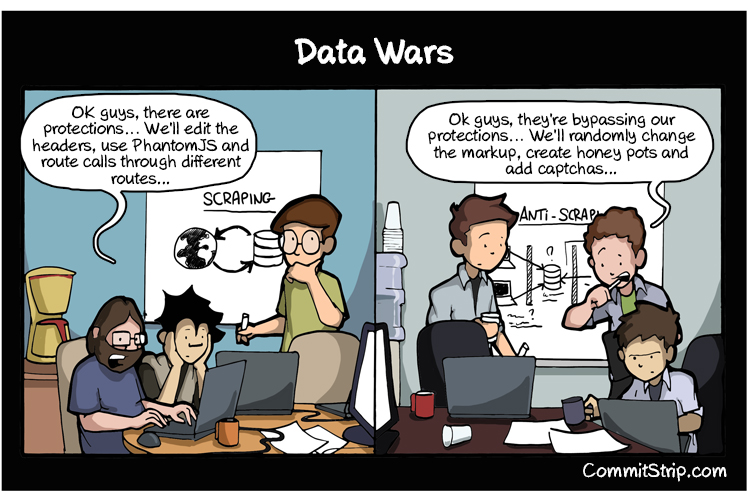
In this course, we will scrape public pages that permit ordinary access.
In hiQ v. LinkedIn, U.S. courts held that scraping data that is already public, with no login and no password, is generally not a violation of the main federal anti-hacking law, the Computer Fraud and Abuse Act. The Electronic Frontier Foundation, which argued that position, explains the case.
A public page does not provide blanket permission to scrape it. A site’s terms of service can forbid scraping as a matter of contract, copyright governs how you use collected material, and thousands of rapid requests can overload a server and deny service to other users. Follow three rules: scrape public pages rather than private ones, go slowly, and don’t republish someone else’s data as your own. The lab and project use public pages at a limited request rate.
Python Environment
Create a folder named web-scraping for today’s examples and open it in VS Code. In that folder, set up its Python environment. Run the examples below in its active terminal.
Downloading a Page
Start by downloading our two-product practice store. We will keep working with this saved page as we extract its products and write a report. The requests library downloads web pages in Python. It is not built in, so install it with the environment active:
$ python -m pip install requestsCreate download.py with this code:
import requests

url = 'https://csci40.rtealwitter.com/topics/05_web_scraping/examples/store.html'
response = requests.get(url, timeout=10)
print(response.status_code)
response.raise_for_status()
response.encoding = 'utf-8'
print(type(response.text))

with open('store.html', 'w', encoding='utf-8') as f:
    f.write(response.text)
print('Saved store.html')
Run the file from the terminal. A successful request produces:
$ python download.py
200
<class 'str'>
Saved store.html
Open store.html in your editor and browser. HTTP stands for Hypertext Transfer Protocol, the rules a browser or scraper uses to request a page and receive a response. response holds that response, including its status and headers. response.text is the decoded body, a str containing the page’s HTML. Our practice page uses UTF-8, so set response.encoding before reading response.text. The file-writing setting also uses UTF-8. We will examine what happens when these settings disagree in the book-download experiment below.
Both response.text and open(filename).read() return strings, so they support the same operations: len, .lower(), .find, slicing, and in. Downloading the body does not extract product records or remove the HTML tags. Requests also does not run JavaScript as a browser does, so text that a browser adds later may be absent from this downloaded string.
HTTP Errors
The printed 200 is an HTTP status code, a number that reports the request’s outcome. In download.py, temporarily change the URL to https://csci40.rtealwitter.com/nonexistent-page and run the file again. A missing page normally returns 404. raise_for_status() then raises an HTTPError and stops the program before it opens the output file. Any previously saved store.html stays on disk. Restore the original URL afterward.
200 means the request succeeded. 404 means the server has no such page. In general, codes in the 200s indicate success, 300s indicate redirects, 400s indicate a problem with the request, and 500s indicate a server error. MDN lists all HTTP status codes. Requests normally follows redirects for us.
An HTTP error such as 404 still gives us a response. A connection failure may prevent a response from arriving at all. In that case, requests.get itself raises an exception. The timeout=10 argument limits how long Requests waits for connection or read activity. It is not a deadline for the entire download. Without a timeout, Requests can wait indefinitely. The Requests quickstart explains these failure cases.
This program needs the requested page to do its job, so stopping on failure is useful. raise_for_status() detects an HTTP error and raises an exception. try/except would decide what to do after an exception occurs. We will add a handler later when there is another page to try.
Command-Line Arguments
To download a different page, we currently have to edit the program. Save a copy as wget.py, then replace its contents with the version below. The built-in argparse library parses arguments: it reads the command-line text and organizes it into values our program can use. It accepts named options such as --url and --filename:
import argparse
import requests

parser = argparse.ArgumentParser()
parser.add_argument('--url', required=True)
parser.add_argument('--filename', required=True)
args = parser.parse_args()

response = requests.get(args.url, timeout=10)
response.raise_for_status()
with open(args.filename, 'wb') as f:
    f.write(response.content)
print('Saved', args.filename)
Run the file with --url and --filename followed by their values:
$ python wget.py --url https://csci40.rtealwitter.com/topics/05_web_scraping/examples/store.html --filename store.html
Saved store.html
After parse_args(), args.url and args.filename hold the supplied strings. The option names let us put them in either order. Put quotes around a value that contains spaces, such as --filename "practice store.html". required=True makes a missing option produce a usage message before we download or write anything. Run python wget.py --help to see the available options and exit without downloading.
This downloader may receive pages with different encodings. response.content gives us the downloaded bytes, and 'wb' writes those bytes directly to a file without decoding them. There is no encoding argument in binary mode. Saving the bytes preserves the page’s original encoding and any encoding declaration in its HTML.
Working with a Saved Page
Keep downloaded text in a file while developing the processor. You can rerun your extraction on the same input without making another request each time, which makes a changed result easier to investigate.
Once loaded, the HTML is a string whether it came from a file or an HTTP response. The same extraction code can process either source. We will use Beautiful Soup to extract records from HTML and JSON to store those records as text. JSON is a text format for structured values such as lists, dictionaries, strings, and numbers. The remaining store examples use small local files, so they also work without an internet connection once Beautiful Soup is installed.
Extracting Products
A store page contains menus and headings alongside the products. The CSS selectors used to style pages, such as div > .price and a[href], can also extract data from pages you did not write. The Beautiful Soup library parses an HTML string into the document tree from the CSS lesson and selects tags with CSS selectors. We import it from bs4, short for Beautiful Soup 4. The 'html.parser' argument selects Python’s built-in HTML parser. Install the beautifulsoup4 package in the same active environment:
$ python -m pip install beautifulsoup4Open the store.html saved by download.py. Its two product containers are shown below. If the download was unavailable, save this same HTML as store.html to continue offline:
<div class="product">
    <a href="/item/123">Wireless Mouse</a>
    <span class="price">$19.99</span>
</div>
<div class="product">
    <a href="/item/456">Mechanical Keyboard</a>
    <span class="price">$49.99</span>
</div>
Create scrape.py to read this file and print its prices:
from bs4 import BeautifulSoup

with open('store.html', encoding='utf-8') as f:
    html = f.read()
soup = BeautifulSoup(html, 'html.parser')

for tag in soup.select('.price'):
    print(tag.text)
Save and run it:
$ python scrape.py
$19.99
$49.99
.select returns a list of matching tags in page order. An empty list means none matched. After .select finds tags, .text returns the text between a tag’s opening and closing. Add this loop at the bottom of scrape.py to read the links and their text:
for link in soup.select('div.product > a'):
    print(link['href'], link.text)
Run python scrape.py again. Below the prices, it now prints:
/item/123 Wireless Mouse
/item/456 Mechanical Keyboard
Indexing with ['href'] reads the attribute’s value. The prices are strings, so '$19.99' still needs its dollar sign removed before it can be converted to a number. The links beginning with / are paths on the store’s site. A downloader must combine them with the site’s address before requesting them. The scraping project uses this loop to extract names and prices from an eBay results page. Automate the Boring Stuff’s chapter on web scraping documents more uses of requests and bs4.
Checking Selector Matches
A selector can miss a product without raising an error. Predict how many tags should match and check the result. The CSS unit used document.querySelectorAll in the browser console. In Python, use len. Add this line to scrape.py and run the file:
print('Prices:', len(soup.select('.price')))The final line should be Prices: 2. Try other selectors by changing the string passed to .select, predicting the count before each run. A space between selectors means any descendant, while > means a direct child. Adding result lists with + keeps duplicates that a single grouped selector would merge. Restore .price before continuing.
Saving Products as JSON
Keep each price attached to its product by selecting fields inside each product container. Append this code to scrape.py:
products = []
for product in soup.select('div.product'):
    link = product.select('a')[0]
    price = product.select('.price')[0]
    products.append({
        'name': link.text,
        'price': price.text,
        'href': link['href'],
    })
print(products[0])
print('Products:', len(products))
Run the file again. Its final two lines are:
{'name': 'Wireless Mouse', 'price': '$19.99', 'href': '/item/123'}
Products: 2
Here [0] assumes each product contains a matching link and price. If the store removes one, the resulting IndexError tells us that our assumption needs checking. Keeping the price and path as strings preserves what the source says. Conversion to a number or full URL is a separate step.
Add import json at the top of scrape.py, then append this code at the bottom:
with open('products.json', 'w', encoding='utf-8') as f:
    json.dump(products, f, indent=2)
print('Saved products.json')
Run python scrape.py and open products.json in your editor. The json library writes the list of dictionaries as structured text. indent=2 makes it easier to read. The saved records can be loaded without parsing the store page again. The complete scrape.py includes every addition above.
Loading the Product Report
Create read_products.py beside products.json:
import json

with open('products.json', encoding='utf-8') as f:
    products = json.load(f)
for product in products:
    print(product['name'], product['price'])
Run it after scrape.py:
$ python read_products.py
Wireless Mouse $19.99
Mechanical Keyboard $49.99
json.load reads structured text from a file and rebuilds the Python list and dictionaries. The report program now works from saved records. It does not need Requests or Beautiful Soup.
Lab and Project
The two sample products are saved in products.json. To extract from a downloaded store page, change the filename in scrape.py, then adjust the selectors to that page’s tags. The web-scraping project combines these tools: argparse reads a search term, requests downloads the eBay results, bs4 extracts each item’s name and price, and json saves the list to a file.
In the Web Data lab, catalog titles suggest phrases to count in the archived tweets. Its analysis loops over the records and keeps a running count for each phrase. Later we will learn shorter syntax for some of these loops.
Text Encoding
Save a copy of download.py as download_dracula.py. Change its URL to https://www.gutenberg.org/files/345/345-h/345-h.htm and replace store.html with dracula.html in both open and the final print, then run python download_dracula.py. Open the result in your editor and browser.
This Gutenberg page uses UTF-8, so we set response.encoding before reading response.text. Requests chooses an encoding from the HTTP headers, which can omit the encoding declared inside the HTML. If an apostrophe appears as ’, the bytes were decoded with the wrong encoding. The two encoding settings have separate jobs: response.encoding decodes the downloaded bytes, and encoding='utf-8' writes the resulting string to disk. Changing only the file-writing encoding preserves any garbled characters already in that string. After fixing the download code, run it again to replace the saved file. The Requests documentation explains how to override the response encoding. Other pages may use a different encoding.
Reading a JSON Archive
An archive or API may supply records directly as JSON. Like our saved product report, this archive uses JSON to represent lists and dictionaries as text. Save this tiny archive of example posts as posts.json:
[
    { "text": "hello", "username": "Trump" },
    { "text": "world", "username": "Obama" },
    { "text": "hola",  "username": "Obama" },
    { "text": "mundo", "username": "Trump" }
]
Create read_posts.py to load it:
import json

with open('posts.json', encoding='utf-8') as f:
    jsontext = f.read()
print(type(jsontext))
print(jsontext[0])

data = json.loads(jsontext)
print(type(data))
print(data[0])
print(data[0]['username'])
The built-in json library parses the text with json.loads (“load string”):
$ python read_posts.py
<class 'str'>
[
<class 'list'>
{'text': 'hello', 'username': 'Trump'}
Trump
Before parsing, jsontext is one string, and jsontext[0] selects a character. After parsing, data is an ordinary Python list of four dictionaries, each with a "text" and a "username" field. We can index and loop over it like any other list. The Web Data lab uses the 2009–2018 Trump tweet archive. Load its JSON files into one list, then count records containing phrases such as Obama and Russia.
Obama, OBAMA, and obama are three different strings. Lower-case text before searching to count every variant. Append this check to read_posts.py and run it again:
print('obama' in 'talking about OBAMA today'.lower())It adds True to the output. The lab uses this case-insensitive check for its word counts. The complete read_posts.py includes this final check.
Handling Failed Downloads
Our single-page downloader stops when it cannot get the page. For a batch of independent pages, we may want to report the failure and continue with the next one. Save this extension as download_many.py:
import requests

pages = [
    ('https://www.gutenberg.org/nonexistent-page', 'missing.html'),
    ('https://www.gutenberg.org/files/345/345-h/345-h.htm', 'dracula.html'),
]

for url, filename in pages:
    try:
        response = requests.get(url, timeout=10)
        response.raise_for_status()
    except requests.exceptions.RequestException as error:
        print('Skipping', url, error)
        continue

    response.encoding = 'utf-8'
    with open(filename, 'w', encoding='utf-8') as f:
        f.write(response.text)
    print('Saved', filename)
Run python download_many.py to try both pages. If the first request returns 404, raise_for_status() raises an HTTPError. The handler catches it because HTTPError is a kind of RequestException. It also handles connection and timeout exceptions from requests.get. The continue skips writing that failed response and advances to the next URL. If the second download succeeds, the program saves dracula.html. File-writing errors still stop the program, since skipping a network failure does not solve a disk problem.