The Shell
You’ve already used the shell to run Python. We can also use it to organize files and search their contents. This week we’ll connect commands so the output of one becomes the input to the next, then save those commands in a script.
Paths and Commands
A shell command names a program. The words after its name are arguments. An argument can supply a filename, give a search term, or set an option that changes how the command runs.
The working directory is the folder the shell is currently using. Commands use it to find files when we give a relative path. An absolute path starts at the filesystem root, while a relative path starts at the working directory. Use . for the current directory, .. for its parent, and ~ for your home directory.
Our website’s visitors are getting errors. The server’s access log records each requested path and the HTTP status returned. We will find a broken link and save a script that counts failed requests.
In VS Code, open Terminal → New Terminal. On Windows, choose Terminal → Select Default Profile → Git Bash and open a new terminal. The default macOS and Linux terminals also support these commands. If you see Python’s >>> prompt, enter exit() to return to the shell.
Download create_practice.py into a new scratch folder and run:
python3 create_practice.py  # Created shell-practice
cd shell-practice
pwd
The generator creates the website and sample logs inside a new shell-practice folder. The file commands below form one walkthrough: run them in order from this folder, since later commands inspect files that earlier commands create or move. For the diagram, suppose the working folder is /Users/rwitter/csci40. Use the path printed by your own pwd when locating your files.
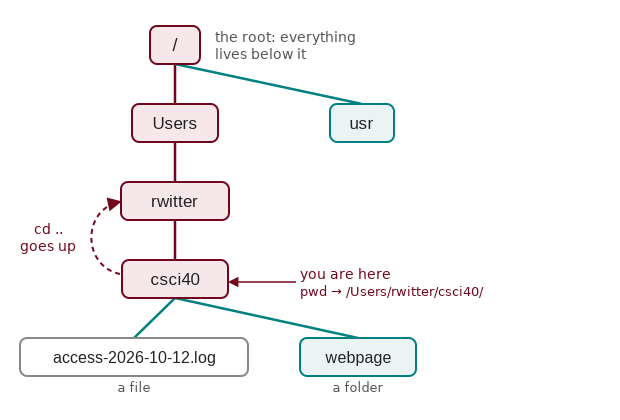
cd webpage
ls           # index.html  style.css
cd ..
A directory holds names for the files and folders inside it. ls lists those names, while cat reads file contents. A hidden file has a name beginning with a dot and is left out of the ordinary ls listing. It still exists and can be read or changed like any other file.
The table below shows commands for navigating and working with files. (All the cheatsheets from this reading are available as a PDF here.)
| Command | Purpose |
|---|---|
pwd |
Print the working directory |
cd folder, cd .., cd |
Enter a folder, its parent, or your home directory |
ls, ls folder |
List names in the working directory or a chosen folder |
ls -a, ls -1, ls -l |
Include hidden entries, use one name per line, or show details |
cat file1 file2 |
Print file contents in the order given |
touch file |
Create an empty file, or update an existing file’s timestamp |
mkdir folder, mkdir -p folder |
Create a folder; -p also creates missing parents and accepts existing folders |
cp source destination |
Copy a file, keeping the source |
mv source destination |
Move or rename a file |
rm file |
Remove a file |
echo text |
Print text followed by a newline |
printf 'text\n' |
Print formatted text, using \n where a newline is wanted |
wc -l |
Count newline characters in the input |
Inspect our practice folder:
ls -1
ls -a
ls -l webpage
The ordinary listing includes four dated log files and webpage. The -a listing also includes .gitignore, . and ... .gitignore tells Git which files to leave untracked. The -l listing includes details such as file size and modification time.
Files and Patterns
Copying a file creates a second file with the same contents. Later changes to the original do not update the copy. Moving changes a file’s location or name, leaving no copy at the old path. A directory destination lets us put several files in the same folder.
Back in shell-practice, make and inspect a backup, then remove it:
cp access-2026-10-12.log backup.log
cat backup.log
mv backup.log saved.log
rm saved.log
mkdir logs
touch notes.txt
rm has no trash can, so check the filename before running it. Calling touch notes.txt again does not empty the file.
A command can receive several filenames as separate arguments. Quotes group words into a single argument when a filename or piece of text contains spaces.
These commands create three files, including one whose name contains a space:
touch 'meeting notes.txt' draft.txt final.txt
rm 'meeting notes.txt' draft.txt final.txt
Often we want a command to act on a group of filenames with something in common. A filename pattern, or glob, describes that group using fixed text and wildcards. * matches any run of characters, including none, while ? matches exactly one character. The shell finds the matching filenames and passes them to the command.
Preview the dated logs:
ls access-2026-10-0*.log  # access-2026-10-02.log
ls access-2026-10-1?.log  # access-2026-10-10.log  access-2026-10-11.log  access-2026-10-12.log
We want to keep October 12 here and move the three older logs into logs:
mv access-2026-10-02.log access-2026-10-10.log access-2026-10-11.log logs/
ls logs
A pattern works with cp, mv, and rm as well as ls. Preview it with ls before using it to move or remove files.
For a new project, mkdir creates its folder and cd enters it. git init initializes an empty repository there. Course Setup explains how to create a Python environment inside it.
Input and Output
Programs can receive text through standard input and send results through standard output. In the terminal, output usually appears on screen. Redirection sends it to a file instead, or supplies a file as input. A pipe connects one program’s output to the next program’s input, so they can work together without saving an intermediate file.
The table below shows how to redirect input and output and connect commands.
| Form | Effect |
|---|---|
command > file |
Save output, replacing the file’s contents |
command >> file |
Append output to the file |
command < file |
Read standard input from the file |
first \| second |
Send the first command’s output to the second command’s input |
*.txt |
Select filenames ending in .txt |
log?.txt |
Select filenames with exactly one character between log and .txt |
<<'EOF' … EOF |
Supply the intervening lines as literal standard input |
Each line in today’s log is one request. Here are its first three lines:
2026-10-12 09:00 200 GET /
2026-10-12 09:01 200 GET /about
2026-10-12 09:02 404 GET /cats
The fields are date, time, status, method, and path. From web scraping, 200 means success, 404 means not found, and 500 means a server error. Read the whole file, then count its lines:
cat access-2026-10-12.log
cat access-2026-10-12.log | wc -l  # 8
wc -l < access-2026-10-12.log     # 8
wc -l access-2026-10-12.log       # 8 access-2026-10-12.log
ls logs | wc -l                  # 3
wc includes the filename when it receives one as an argument. The first two counts use standard input instead. The final command counts filenames, because that is what ls sends through the pipe.
echo prints its arguments with a final newline. printf lets us choose the line breaks with \n and adds none automatically. wc -l counts those newline characters, so a final line without one does not add to its count. Error messages normally use a separate stream, standard error, which can still appear in the terminal when output goes into a file.
Start a report with a label, then append the count:
mkdir reports
echo 'Requests:' > reports/summary.txt
cat access-2026-10-12.log | wc -l >> reports/summary.txt
cat reports/summary.txt  # Requests: followed by 8 on the next line
printf '404: not found\n500: server error\n'
Using > for the count would replace the label.
A here document, or heredoc, supplies several lines of input directly in the command text. The shell reads until a line containing only the closing marker. The marker is not part of the input. Quoting the opening marker, as in <<'EOF', keeps the body literal.
Write investigation notes to a file:
cat > notes.txt <<'EOF'
Check the /cats and /Cats paths.
Find the link to /old-page.
EOF
cat notes.txt
cat copies its input to output, and > saves that output. We could use the same form to write Python code to example.py, then run python3 example.py. EOF means “end of file,” but any matching opening and closing marker works.
Searching
Use grep to find lines containing a word or pattern. It prints each matching line once, even when the pattern occurs several times on that line. It can read from a file or from another command through a pipe.
The table below shows ways to search lines with grep.
| Search | Effect |
|---|---|
grep 'text' file |
Print lines containing the text |
grep '^text' file |
Print lines starting with the text |
grep -i 'text' file |
Match without distinguishing uppercase and lowercase |
grep -v 'text' file |
Keep lines that do not match |
grep -n 'text' file |
Include each matching line’s number |
grep -r 'text' folder |
Search files in the folder and its subfolders |
grep -l 'text' file1 file2 |
Print each matching filename once |
Options can be combined: -rn and -r -n both request recursive searching with line numbers. The letters belong to their commands: ls -l shows details, wc -l counts lines, and grep -l lists matching files. Quotes keep a pattern containing spaces together as one argument.
Find missing-page responses, then investigate a possible capitalization problem:
grep ' 404 ' access-2026-10-12.log
grep -i 'cats' access-2026-10-12.log
The spaces around 404 match the status field rather than a path that happens to contain those digits. The second search finds both the failed /cats request and the successful /Cats request.
Find where the website still links to the old page:
grep -rn 'old-page' webpage  # webpage/index.html:2:<a href="/old-page">Cat photos</a>
grep -rl ' 404 ' logs
The second command lists the two older log files that contain missing-page responses.
Several filters can narrow a search in stages. Each command in a pipeline receives only the previous command’s output, so line numbers from a later grep -n refer to that filtered input. Saving results makes a separate file containing the matches at that moment, rather than a search that updates itself later.
Exclude the missing browser icon while counting broken page links:
grep ' 404 ' access-2026-10-12.log | grep -v 'favicon' | wc -l  # 2
grep ' 404 ' access-2026-10-12.log > reports/missing.txt
Search logs, rather than the whole practice folder, when checking older requests. Otherwise a recursive search can include our saved reports as well as the original logs.
Scripts and Loops
A script is a text file of commands that an interpreter runs in order. A Bash script uses the same commands, quoting, pipes, and redirection as our interactive terminal. Saving the commands records the steps of a task so we can repeat them on new input. A line beginning with # is a comment for the reader.
In VS Code, create report.sh inside shell-practice:
# Summarize today's access log.
mkdir -p reports
echo 'Requests:' > reports/summary.txt
cat access-2026-10-12.log | wc -l >> reports/summary.txt
echo 'Not found (404):' >> reports/summary.txt
grep ' 404 ' access-2026-10-12.log | wc -l >> reports/summary.txt
Run it with Bash:
bash report.sh
cat reports/summary.txt  # Requests:, 8, Not found (404):, 3 on separate lines
The script saves its output in a file, so running it prints nothing to the terminal. mkdir -p lets the script use the existing report folder. The first > starts a fresh report each time.
A for loop repeats a block of commands for each value in a list. The loop variable holds the current value, and $name inserts a variable’s value into a command. Double quotes allow that substitution and keep the result together as one argument. Single quotes keep $name as literal text. The keywords do and done mark the loop body.
Replace report.sh with a version that counts two kinds of error:
mkdir -p reports
echo 'Requests:' > reports/summary.txt
cat access-2026-10-12.log | wc -l >> reports/summary.txt
for status in 404 500
do
    echo "Status $status:" >> reports/summary.txt
    grep " $status " access-2026-10-12.log | wc -l >> reports/summary.txt
done
On the first pass, the search pattern is 404, and on the second it is 500. Run the script and open its report:
bash report.sh
cat reports/summary.txt  # Requests:, 8, Status 404:, 3, Status 500:, 1 on separate lines
Testing a Script
A script’s relative paths are interpreted from the working directory where we run it. The path to the script tells Bash where to read commands, but does not change that working directory. This lets one saved script process several folders that have the same structure. Testing on a fresh copy also makes it easier to tell what the script changed.
Start in shell-practice, then create another set of sample files:
cd ..
mkdir report-test
cd report-test
python3 ../create_practice.py  # Created shell-practice
cd shell-practice
Add one failed request and run the saved report script from this new folder:
echo '2026-10-12 09:08 404 GET /contact' >> access-2026-10-12.log
bash ../../shell-practice/report.sh
cat reports/summary.txt  # Requests:, 9, Status 404:, 4, Status 500:, 1 on separate lines
Check that the original report still has eight requests while this one has nine.
The shell grew out of Unix, developed at Bell Labs beginning in 1969. The Unix philosophy favors small programs that do focused jobs and exchange text. Pipelines let us combine those programs into a larger computation.